


 Alek
Alek
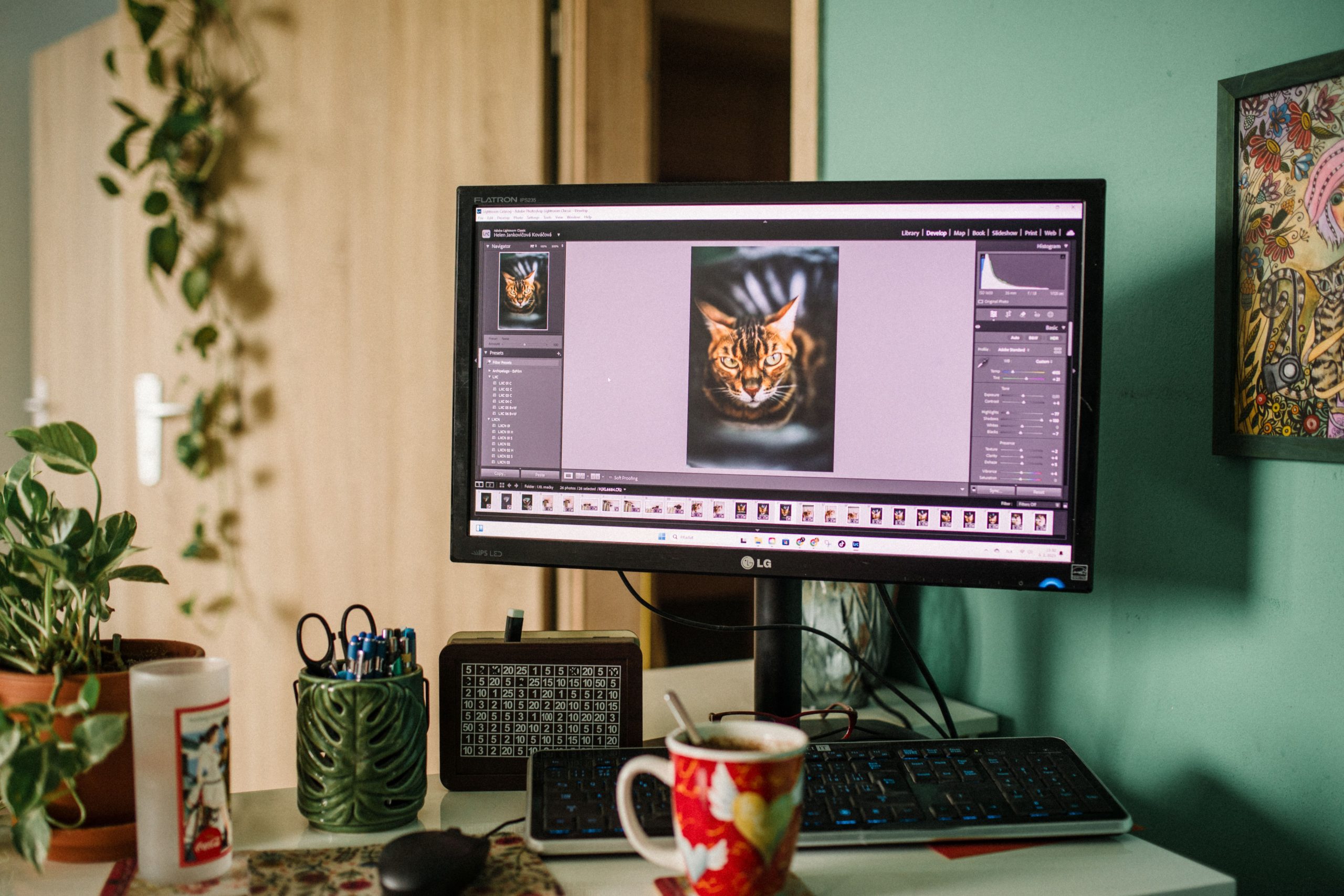
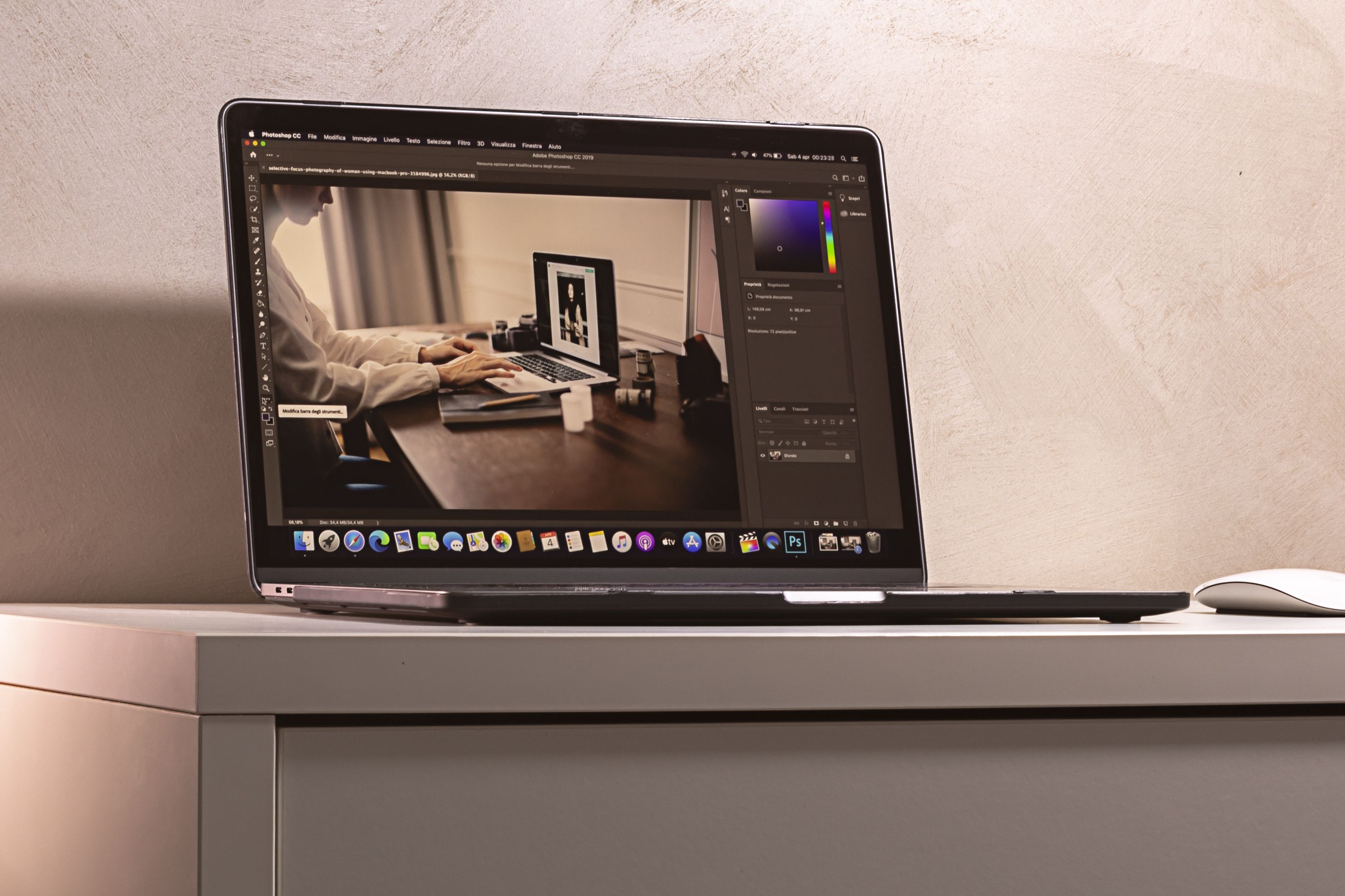
Every AI image editor now claims the same six tricks: object removal, background swaps, generative fill, retouching, upscaling, and text-prompt editing. I spent this piece opening the pricing pages, reading the license terms, and checking the model documentation behind each tool, and the honest conclusion is that the feature list has stopped being useful. What separates these five is narrower and far less photogenic – how they handle hair, glass, and semi-transparent edges; whether your files ever leave your machine; what the license actually permits; and how the bill behaves when you edit three hundred images instead of three.
The five below cover the real jobs people bring to an AI editor. There is no universal winner, and any listicle that hands you one is selling something. But I guarantee at least one of these tools will meet your needs, and the notes on cost at volume are where most buyer’s remorse starts.
The best AI image editors at a glance
| Tool | Best for | Runs where | Engine | Free plan | Entry price |
|---|---|---|---|---|---|
| Magic Hour | Prompt-based edits and API work at scale | Browser + API | Multi-model (Qwen Edit, Nano Banana Pro, Flux 2 Klein, GPT Image 2, Seedream) | 3 edits/day, no signup, no watermark | From $12/mo (annual) |
| Adobe Photoshop + Firefly | Layer-based precision, print, NDA client work | Desktop + web | Firefly Image 5 + 30+ partner models | Firefly free tier, limited credits | $22.99/mo single app |
| Canva Magic Studio | Fast edits and marketing design for non-designers | Browser + mobile | Leonardo Phoenix (Dream Lab) + Canva AI | Yes – up to 200 Standard / 20 Premium AI uses | ~$144/yr (Pro) |
| Photoroom | Batch e-commerce product photography | Browser + mobile | Photoroom’s proprietary models | Yes – 100 exports/mo, watermarked, non-commercial | $12.99/mo (or $7.50 annual) |
| Topaz Photo | Denoise, deblur, and upscaling rescue jobs | Desktop (standalone + plugin) | Topaz proprietary models | No – preview-only demo, no export | ~$199/yr |
Prices and free-tier limits checked in September 2026 from each vendor’s pricing page and help center. Vendors change tiers and credit allowances frequently, so confirm on the live page before you subscribe.
Read the table for the two rows that matter most to you: whether there is a usable free tier, and where the tool runs. Those two facts eliminate half the options immediately for most teams.
The 5 best AI image editors, reviewed
1. Magic Hour – the best all-round AI image editor for most people
Magic Hour is a browser-first editor built around one idea: describe the change rather than perform it. You upload an image, type something like “remove the sign and keep the rest of the photo unchanged,” and get a new version back in seconds. What makes the Magic Hour image editor my top pick for broad use is not any single edit. It is that one account exposes several frontier models – Qwen Edit, Nano Banana Pro, Flux 2 Klein, GPT Image 2, and Seedream among them – so you can route a job to whichever one handles it best instead of paying for three subscriptions.
Pros
- Multi-model routing inside a single account, so text-heavy edits, portrait consistency, and fast iterations can use different engines
- Genuinely usable free tier: three edits per day, no signup, and no watermark on results
- Coverage that stretches from object removal and background swaps to retouching, photo restoration, text removal, and upscaling up to 4K
- Batch generation of up to 16 images in one run on supported paid models – useful for ad variants and listings
- Public API from $0.009 per image, with SDKs and docs, which is rare at this price band
- Uploads are not used for training, content is deleted from active storage within a day, and paid plans carry full commercial rights
Cons
- No layers, masks, channels, or CMYK, so it does not replace Photoshop for print or complex compositing
- Result quality depends heavily on which model you choose; some are noticeably better with hands and small text than others
- Credits are metered per model and resolution, so budgeting a large job takes a little arithmetic
- The free tier is licensed for personal, non-commercial use only
My read is that Magic Hour wins on breadth and price-to-output rather than surgical control. If you are a freelancer, marketer, or small studio whose editing is mostly “fix this photo and give me three versions for different platforms,” this is hard to beat. If your deliverable is a layered PSD that another designer has to open and finish, keep reading.
Price: Free tier with three daily edits and no watermark. Creator is $19/month or $12/month billed annually; Pro starts at $39/month or $25/month annually; Business starts at $99/month or $66/month annually. API access starts at $0.009 per image.
2. Adobe Photoshop with Firefly – the precision pick for professional and print work
Photoshop is no longer the tool that lacks AI; Generative Fill and the Remove Tool now sit inside it, powered by Firefly Image 5 and a growing roster of partner models. The reason it stays on this list is the part prompt-only editors cannot copy: selections, masks, and layers constrain exactly where a generative edit lands, and files can be processed locally by default.
Pros
- Layer-based, non-destructive editing with real masking and a proper undo history
- Firefly’s first-party models are trained on licensed and public-domain material, and paid plans carry commercial IP indemnity – the reason client work under NDA tends to end up here
- Grassroots controls over generative output: constrain the region, then inpaint only inside it
- Access to 30-plus partner models (including Google and OpenAI image models) through one Adobe login
- Best-in-class handling of hair, glass, and semi-transparent edges when you do the masking yourself
Cons
- Expensive once you stack a subscription on top of generative credits – a single app is $22.99/month, and Creative Cloud Pro is $69.99/month
- Credits do not roll over month to month, so unused allowance is simply lost
- The same “Generative Fill” button can cost around 10 credits on Firefly Image 5 and as much as 40 on some partner models
- Steep learning curve compared with prompt-first editors
- Standard generations are unlimited on paid tiers, but video, audio, and partner models drain premium credits quickly
I would not start here if you only edit product photos a few times a week – you would be paying for an aircraft carrier to cross a river. But if your work has to survive being printed at A2 or opened again by a colleague, the safety net of layers and masks is worth the premium.
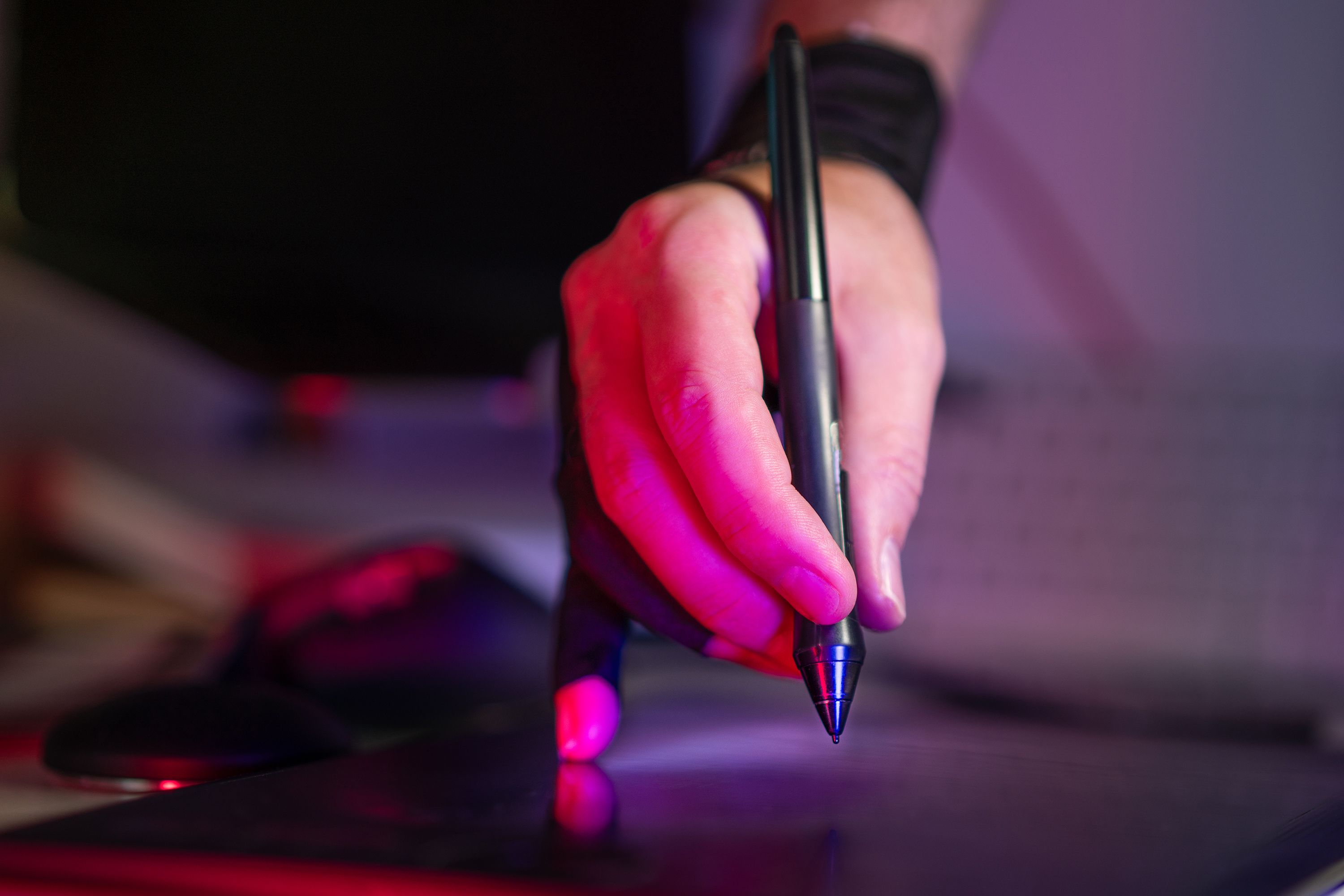
Price: Photoshop single-app is $22.99/month; the Photography plan (Photoshop, Lightroom, Lightroom Classic) is $19.99/month. Firefly standalone runs $9.99/month (Standard, 2,000 credits) to $199.99/month (Premium, 50,000 credits). Creative Cloud Pro is $69.99/month with 4,000 monthly generative credits.
3. Canva Magic Studio – the fastest path for non-designers and marketing teams
Canva is not really an image editor. It is a design platform that layered AI on top, and that is precisely why it works for people who do not want to learn an editor. Magic Eraser, Magic Edit, Magic Expand, and background removal drop into a drag-and-drop canvas that a non-designer can operate on day one.
Pros
- The ceiling is lower than Photoshop’s, but the floor is far higher – a first usable result in minutes rather than a bad one in an hour
- Editing and layout share one workspace, so a cleaned-up photo becomes a finished social post without leaving the tab
- Brand kits, templates, and one-click resizing across formats are genuinely time-saving for teams
- Background remover, Magic Eraser, and Magic Expand run outside the credit system on paid plans under fair use
- Free tier is real, if limited, and there is a 30-day Pro trial
Cons
- AI image quality lags dedicated tools, particularly on complex hair, reflective products, and exact corrections
- The AI allowance is a single shared pool that drains at wildly different rates – Ultra tools can consume roughly 100x what a Standard action costs
- Every regeneration counts, including failures, so iterating five times burns five uses for one keeper
- There is no à-la-carte top-up on Pro; the only escape hatch is the AI Pass add-on at around $100 per user per month
- Free plan has no Ultra AI access at all
If you are a small business owner or social media manager who needs decent images fast and on-brand, Canva is the sane choice. If you need retouching that will hold up at full resolution, you will hit its ceiling sooner than you expect.
Price: Free plan with up to 200 Standard or 20 Premium AI uses per month and no Ultra access. Pro is roughly $144/year (about $15/month billed monthly); Business is around $250/year per person, doubling most allowances. AI Pass adds 40x the Pro allowance for heavy users.
4. Photoroom – the batch e-commerce specialist
Photoroom is built narrowly for product photography and wins on throughput rather than per-image finesse. Its advantage shows at volume, where uniform cutouts and a consistent backdrop across hundreds of listings matter more than any one image being perfect.
Pros
- Purpose-built for e-commerce: clean cutouts, grounded shadows, consistent scenes, and repeatable catalog output
- Batch export and template workflows make hundreds of listings tractable
- AI Virtual Models and Product Staging remove the need for a photographer on simple shoots
- Shopify integration on higher tiers publishes listings directly
- Mobile apps are strong, which matters for sellers shooting on a phone
Cons
- Narrow by design – weak for portraits and open-ended compositing
- Export resolution is capped at 2K on every plan below Ultra, which costs $99/month
- The free plan watermarks exports and is licensed for personal, non-commercial use only, so it cannot run a shop
- Free tier meters exports rather than generations: 100 per month, and a batch of ten images counts as ten
- Video generator and Shopify sync require the Max plan or higher
Photoroom is the tool I would hand to someone selling physical products online. For everyone else, it is a specialist you rent when the catalog gets large, not a general editor.
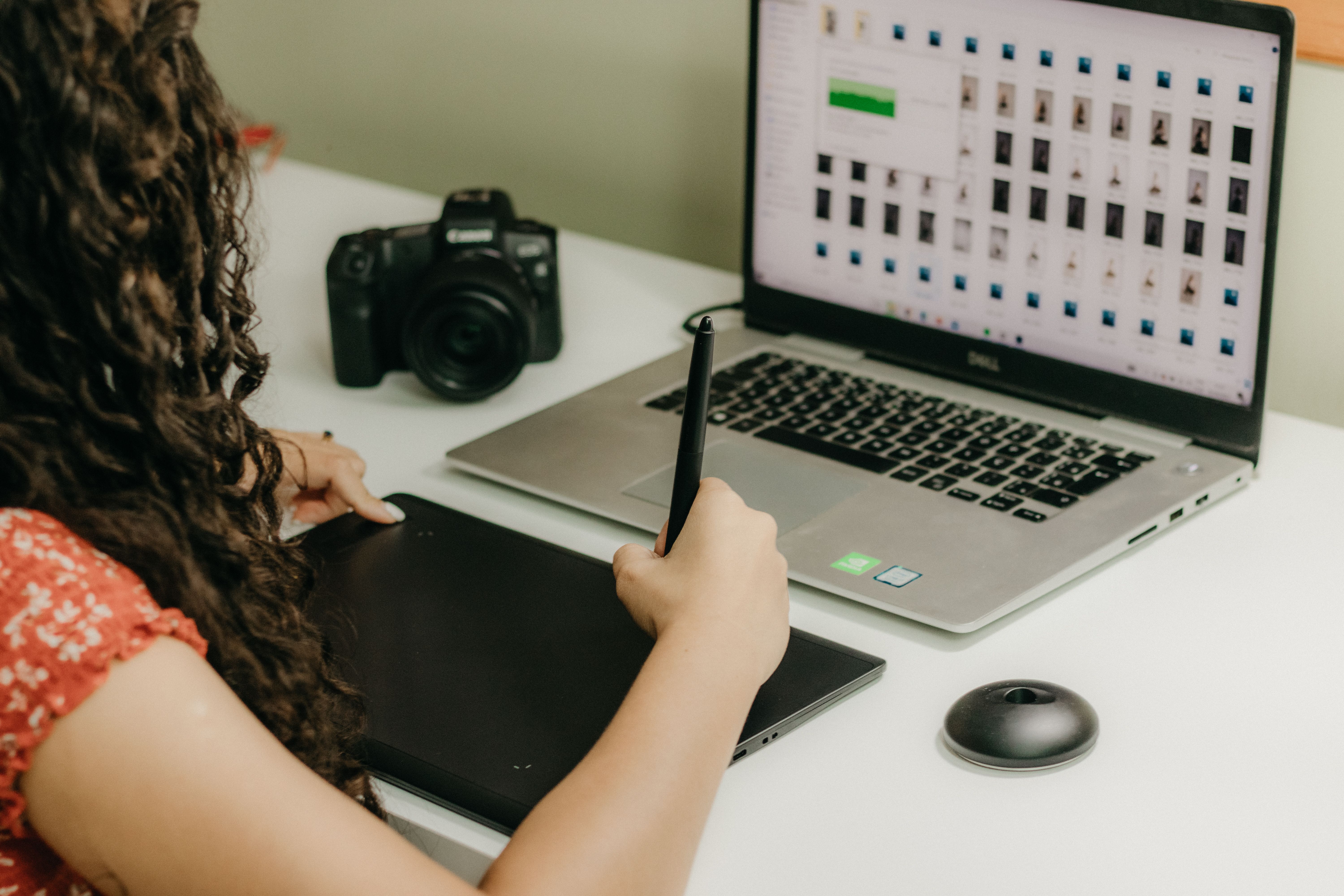
Price: Free plan with 100 exports per month (25 per week), watermarked and non-commercial. Pro is $12.99/month or $7.50/month billed annually; Max is $34.99/month or $20.99/month annually; Ultra starts at $99/month or $82.50/month annually and is the first tier with 4K export.
5. Topaz Photo – the rescue tool for denoise, deblur, and upscaling
Topaz Photo is the enhancement specialist, and it is the tool to reach for when the source file is the problem rather than the composition. Old phone photos, high-ISO night shots, and soft captures that fall apart on resize usually need this pass before anything else touches them. It runs locally and plugs into Lightroom, Photoshop, and Capture One.
Pros
- Class-leading denoise, sharpen, and upscale results – the part that consistently beats the built-in tools in Photoshop and Lightroom
- Twelve AI tools in one pipeline, including face recovery, object removal, and a healing brush
- NeuroStream cuts VRAM use by up to 95%, so heavy models run on mid-range GPUs instead of the cloud
- Strong batch processing for event and wedding shooters
- Runs offline and as a plugin inside existing workflows
Cons
- Subscription-only since Topaz ended perpetual licenses in October 2025 – what used to be a one-time purchase is now a yearly bill
- No generative fill, no sky replacement, no layers, and no skin retouching; it is a rescue lab, not a design suite
- No free tier, and the demo mode previews but will not export without a license
- GPU-hungry; AMD cards run noticeably slower than Nvidia
- Aggressive recovery can over-cook portraits into plastic-looking skin if you leave the defaults alone
If your recurring pain is noise, softness, or low resolution, nothing in this list cleans a file as well. If you want to invent a new sky or composite a scene, you are in the wrong app, and Topaz is not pretending otherwise.
Price: No free plan; a preview-only demo lets you see results before buying. Personal is listed around $199/year (roughly $39/month month-to-month), with Pro at $599/year for full commercial use and seat management. The Topaz Studio bundle starts around $399/year. Pricing has moved recently, so verify before committing.
How I chose these tools
I started from a deliberately awkward set of tasks rather than a feature checklist: remove an unwanted object from a cluttered scene, swap a background without wrecking fine hair, replace text inside an image, extend a canvas into a new composition, rescue a noisy low-resolution photo, and produce a batch for a product listing. Any editor can cut out a clean subject on white; the differences show up on glass, strands, and half-transparent edges.
Then I applied four filters that the marketing pages bury. Where does the processing physically happen – local, cloud, or both? What does the license permit on the plan you would actually buy, rather than the flagship tier? What happens to your uploads, and are they used for training? And what does the tool cost to run at volume, including the failed generations that still burn credits?
Every price, allowance, and licensing claim here comes from the vendor’s own pricing page, help center, or documentation, checked in September 2026, and cross-checked against dated third-party reporting where it existed. I did not run a controlled, same-image quality benchmark across all five, and I do not pretend otherwise – first-result quality shifts with the image, the prompt, and the model version. The strengths and limitations below are documented behavior and pricing, not a score I invented.
Disclosure: this guide was produced for a client that develops Magic Hour, and Magic Hour appears first by arrangement. The comparison notes for every tool, including its weaknesses, are drawn from public documentation and pricing so you can judge the fit for yourself.
What is actually changing in the market
The most useful shift this year is not a better brush – it is conversational, multi-turn editing. Google’s Nano Banana Pro and OpenAI’s GPT Image 2 both accept follow-up instructions (“keep the pose, change only the jacket color”), which was not reliably true a year ago. That makes prompt-first editors viable for real iteration rather than one-shot novelty.

The second shift is provenance, and it is creeping into buyer requirements. The C2PA standard’s Content Credentials implementation guidance defines how signed metadata records whether a file was created or edited with AI, and Google’s SynthID watermark is now embedded in images from multiple major model providers. Google’s own announcement that SynthID had been applied to over 100 billion images and videos is the clearest signal that provenance is now infrastructure, not a policy footnote. If you edit commercially, it is worth knowing that some signals cannot be switched off.
The third shift is economic, and it caught a lot of photographers out. Topaz ended perpetual licenses, Adobe’s generative credits do not roll over, and Canva’s AI allowance drains at different rates per tool. The pattern across the category is a move from “buy the software” to “rent the output.” Budget for recurring cost, and model the cost per usable image – not the cost per generation.
Two names to keep an eye on if you build rather than edit: FLUX.1 Kontext for editing-first, iterative workflows, and Seedream 5 Lite for cost-aware contextual generation. Both are showing up as API options in the tools above, which is a sign of where the underlying engine market is heading.
Frequently asked questions
Which AI image editor is best overall in 2026?
There is no single winner, because the tools specialize. Magic Hour is the best all-round pick for prompt-based editing and API work at a low price, Photoshop with Firefly wins on precision and print-ready output, Photoroom wins on batch product photography, Canva wins on speed for non-designers, and Topaz Photo wins on enhancement. Match the tool to the job.
Are there good free AI image editors?
Yes, with limits. Magic Hour offers three edits per day with no signup and no watermark, Canva’s free plan includes limited AI uses, Photoroom allows 100 exports a month (watermarked and non-commercial), and Firefly has a free tier with a small monthly credit allowance. Free tiers suit occasional edits, not a catalog of several hundred images.
Can AI image editors replace Photoshop?
For many everyday tasks, yes – and a lot of creators now do most of their work in prompt-first tools. For layered compositing, precise masking, full-resolution local processing, and print, no. The more accurate framing is Photoshop with AI inside it versus standalone AI editors, since Firefly now powers Generative Fill directly.
How do I choose between an AI editor and an AI generator?
An editor changes an image you already have; a generator produces a new one from a prompt. Most modern platforms blur the line and do both, but the workflow you start from should decide your pick. Start from a photo and you want editing controls; start from an idea and you want generation quality and prompt adherence.
Do AI-edited images carry watermarks or provenance signals?
Often, yes. Google’s SynthID is embedded in images from several major providers and cannot be switched off, and C2PA Content Credentials attach a tamper-evident record of how a file was created or modified. Some platform-specific visible marks can be removed by upgrading to a paid tier, but embedded provenance and metadata signals generally cannot.
What should I check before subscribing?
Three things the previews never show you: the maximum export resolution on the tier you would actually buy, whether free output carries a watermark and a commercial-use restriction, and how long a batch of fifty images takes end to end. Then run your own worst file – the noisy one, the one with curly hair – through each finalist before you pay.
The final takeaway
Decide what you are editing first, and the tool follows almost mechanically. If you want one editor that covers prompt-based fixes, retouching, restoration, upscaling, and an API without a second subscription, start with Magic Hour. If the work is precise, layered, or headed to print, Photoshop with Firefly is still the ceiling, and the indemnity on paid plans is a real reason to pay for it. If you are a non-designer producing marketing assets, Canva’s higher floor beats Photoshop’s higher ceiling. If you sell products at volume, Photoroom’s batch workflow will save you more hours than any single image being perfect. And if your problem is a bad source file, Topaz Photo is the right first stop.
Before you commit to anything, run one representative project through your two finalists using your own awkward photos – not the vendor demos, which are chosen because they work. Check where processing happens, what the license grants, and what a rejected generation costs you. The tools change fast; the evaluation habit is what keeps you from overpaying.
